Guide · updated 2026-10-14
How to combine voice memos from several people on iPhone or Mac
Several people recorded a message in Voice Memos and sent it to you. The app has no way to join separate memos, so you need another tool. Here are the options on iPhone and on a computer.
Short version: Save every memo to Files, then join them in GarageBand on iPhone. On a Mac, QuickTime (Add Clip to End) is quickest and GarageBand or Audacity give you more control.
How people should send their memo
In Voice Memos, tap the recording, then ••• or the share icon, then Share.
Send it by Messages, Mail or AirDrop, or Save to Files. It arrives as an .m4a file.
On iPhone: GarageBand (free)
Save all the memos to Files, in the GarageBand File Transfer folder.
Open GarageBand, create a song with the Audio Recorder, and switch to Tracks view.
Tap the song section settings and set the length to Automatic. Otherwise long recordings are cut off.
Tap the loop browser, open the Audio Files tab and drag each memo onto the track, one after another.
In My Songs, press and hold the song, tap Share > Song, and export.
On a Mac
Get the memos onto the Mac by AirDrop, or drag them out of Voice Memos on the Mac if you use iCloud. Then, for the quickest result, open the first in QuickTime Player, choose View > Show Clips, then Edit > Add Clip to End for each further memo, and File > Export As > Audio Only.
For pauses and even volume, use GarageBand or Audacity, as in our guide to combining voice messages.
What usually goes wrong
- Recordings made at different distances from the phone sound very different. QuickTime cannot fix that; Audacity can (level each memo separately).
- A WhatsApp voice note in the mix will not open in GarageBand or QuickTime; convert it to .m4a first.
- Voice Memos' Lossless setting makes files about three times larger, which can be too big to email.
The same job with VoiceHug
With VoiceHug nobody sends files. Each person records from a link in their phone's browser, and you get one levelled MP3.
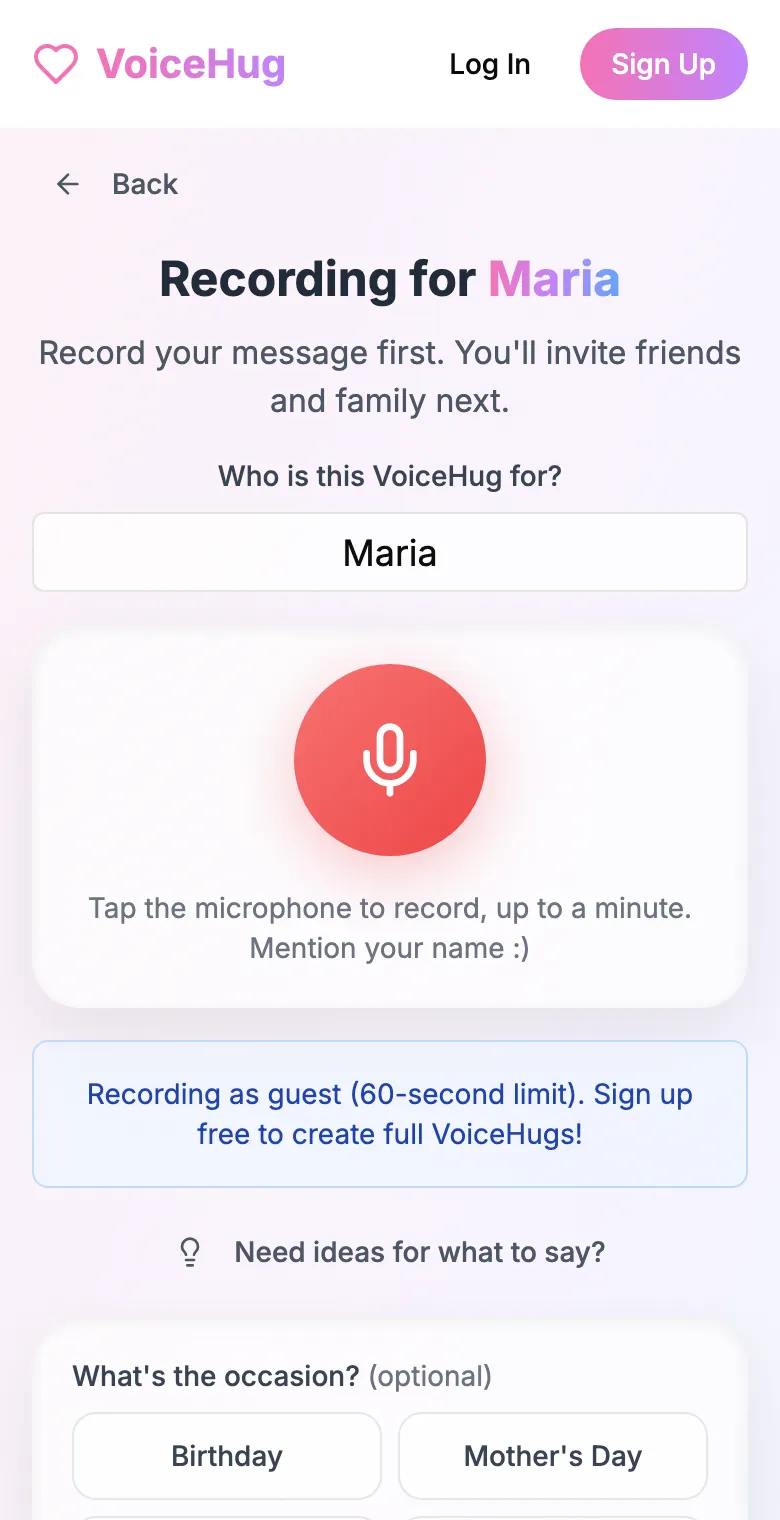
1. Record your own message
Say who it is for and record first, so everyone hears how it sounds.
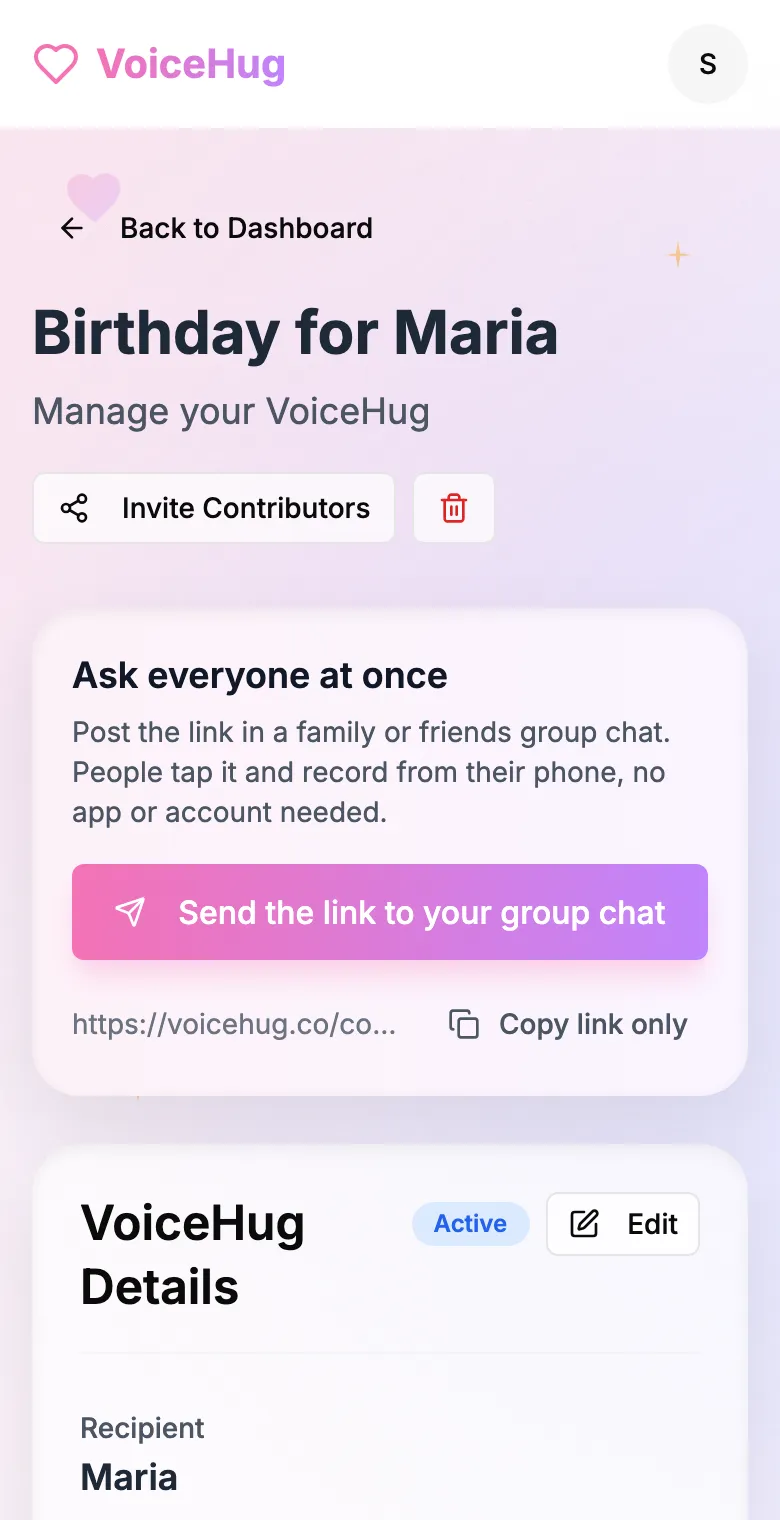
2. Send one link to the group
Post it in the family or friends group chat, or send the WhatsApp invite. You see who has recorded and can remind anyone invited by email.
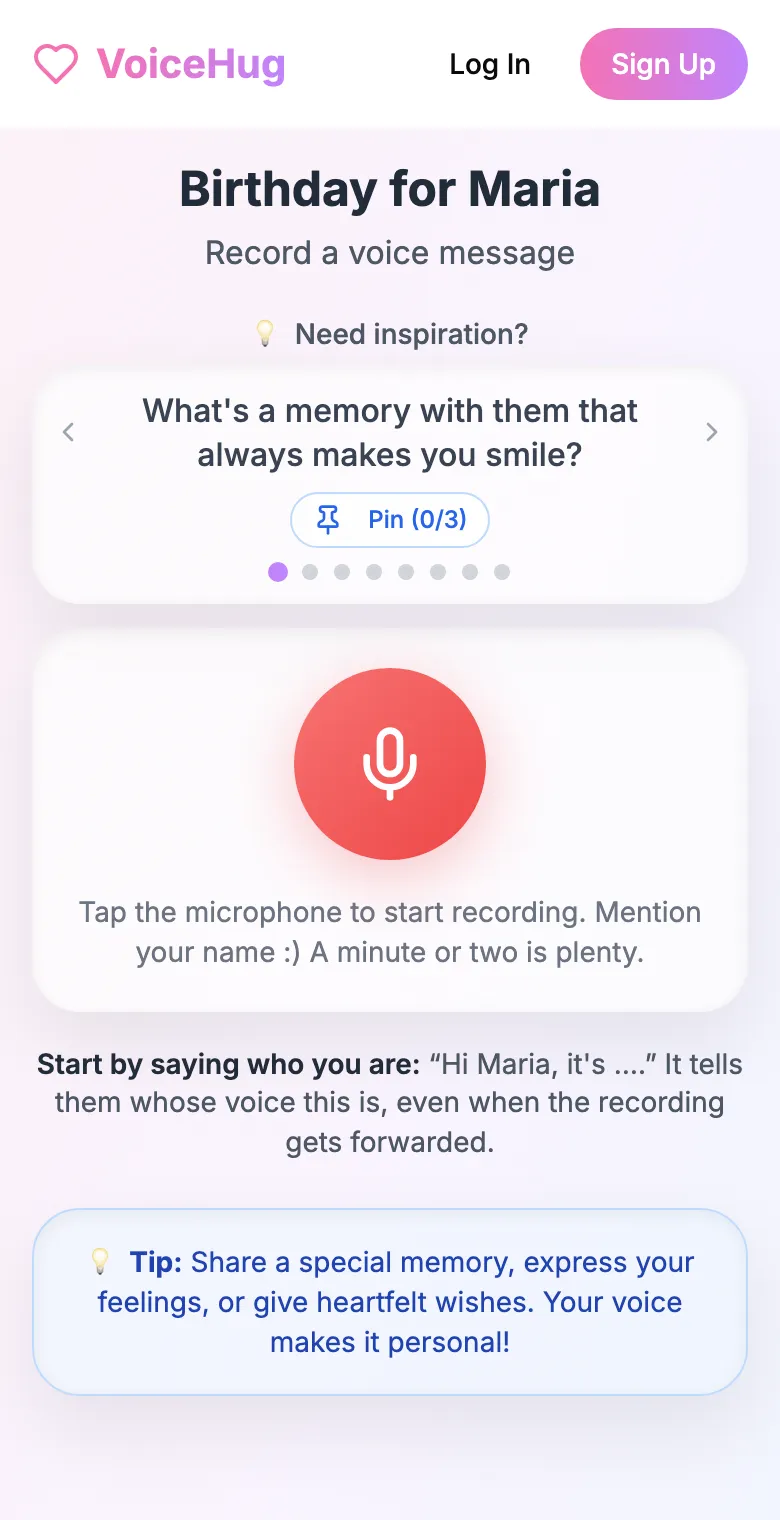
3. Each person records on their phone
They open the link and tap the microphone, with prompts if they need ideas. No app, no account. They can also send a WhatsApp voice note.
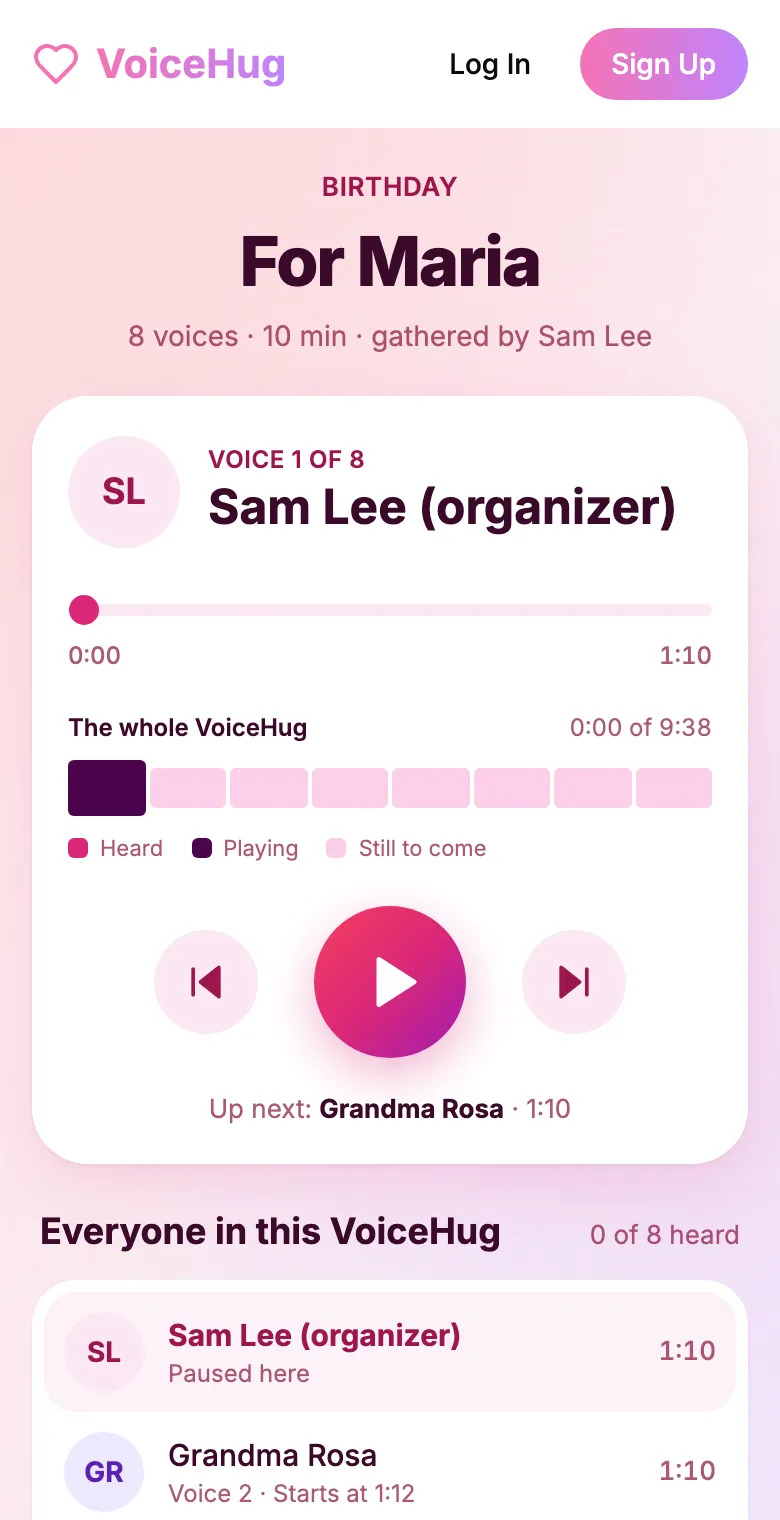
4. They get one recording
VoiceHug levels every voice, puts a short pause between them and makes one MP3 with a chapter for each person, plus a gift page to send.
Free for you and up to 5 others. $9.99 once for a larger group.
Questions
- Can you merge two voice memos on iPhone?
- Not in the Voice Memos app. It can only record more onto the same memo. Use GarageBand for iOS or a computer.
- What format are iPhone voice memos?
- .m4a files, which most editors open, including GarageBand, QuickTime and Audacity (with FFmpeg installed).
- How much does VoiceHug cost?
- Free for the organizer plus up to 5 contributors (6 people). For larger groups it is a one-time $9.99 with no limit on contributors. Contributors never pay.