Guide · updated 2026-10-14
How to save WhatsApp voice notes and merge them into one recording
A group chat is the easiest way to get voice messages from many people, but WhatsApp has no "save all" or "merge" button. Here is how to get the notes out and join them.
Short version: Export the chat with media (or forward notes one by one to Files), unzip it on a computer, and join the .opus files in Audacity or with ffmpeg.
Save several notes at once: export the chat
Export works from the phone app only; WhatsApp Web exports text without media. In a long, busy chat the export includes only the most recent media, so older notes can be missing. Check the count.
iPhone: open the chat, tap the group or contact name, then Export Chat > Attach Media. Android: open the chat, tap ⋮ > More > Export chat > Include media.
Save the export to Files or Google Drive, or email it to yourself. On iPhone it is a .zip file.
On a computer, unzip it. The voice notes are the .opus files, next to _chat.txt.
Save one note at a time
iPhone: press and hold the voice note, tap Forward, then the share icon, then Save to Files (or AirDrop or Mail).
Android: WhatsApp already saved it. With a file manager, open Internal storage > Android > media > com.whatsapp > WhatsApp > Media > WhatsApp Voice Notes. Notes are in dated subfolders.
Merge them
WhatsApp notes are Opus audio in .opus files. VLC plays them; recent Audacity versions open them (or install FFmpeg for Audacity); GarageBand and QuickTime do not, so convert them first. Then follow the Audacity or ffmpeg steps in our guide to combining voice messages: line them up end to end, level each voice and export an MP3.
What usually goes wrong
- Notes come out in the wrong order. Sort by filename or date before importing; forwarded notes lose their original time.
- The person the gift is for is in the group. Make a separate group without them, or collect the notes privately.
- People reply to each other's notes, so the export holds chatter you do not want. Listen through before you merge.
- Mac tools refuse .opus files. Use Audacity, or convert them with VLC or ffmpeg first.
The same job with VoiceHug
VoiceHug accepts WhatsApp voice notes directly. Share the invite: people send the VoiceHug's code and a voice note to VoiceHug's WhatsApp number, and it lands in the mix with no exporting or converting.
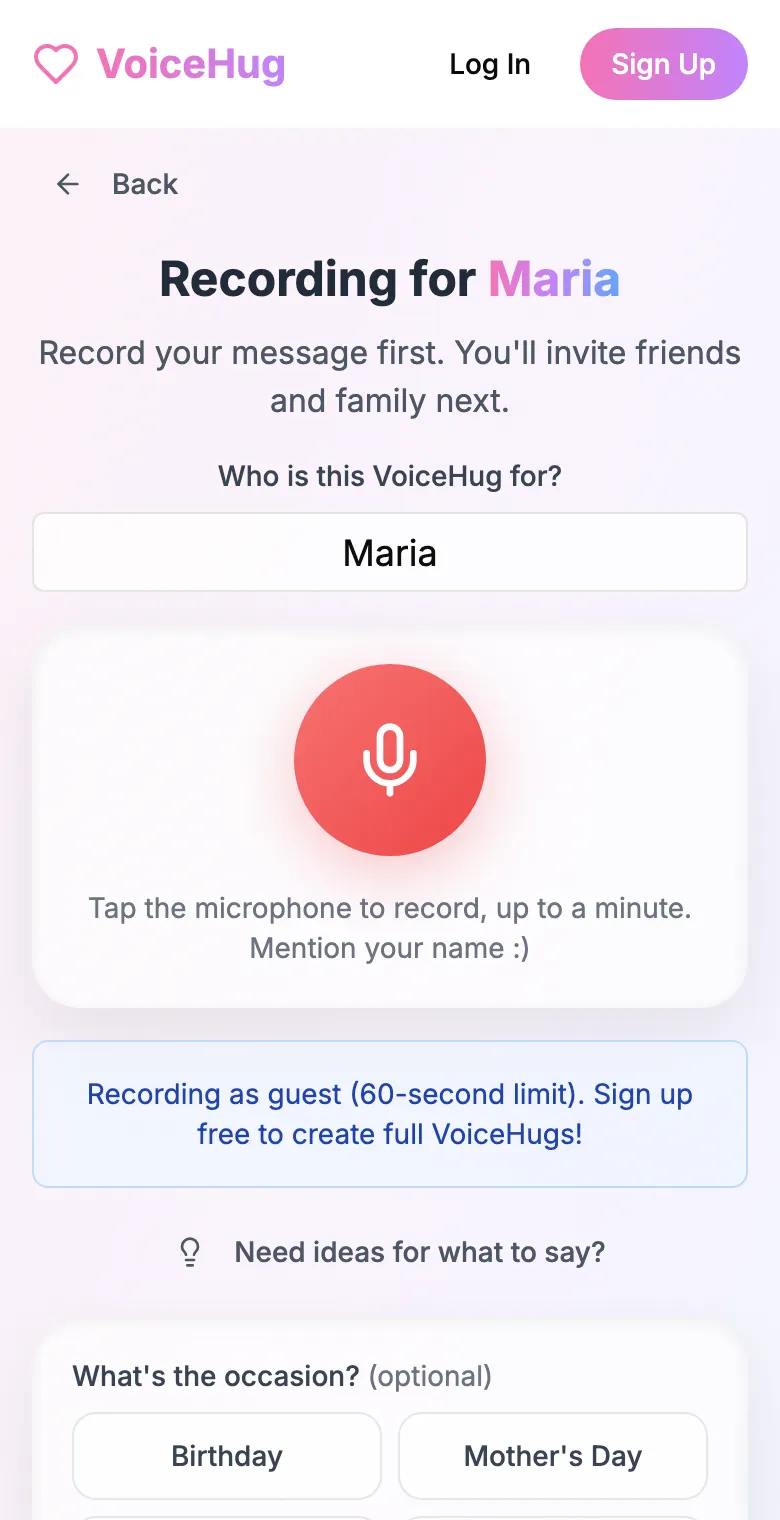
1. Record your own message
Say who it is for and record first, so everyone hears how it sounds.
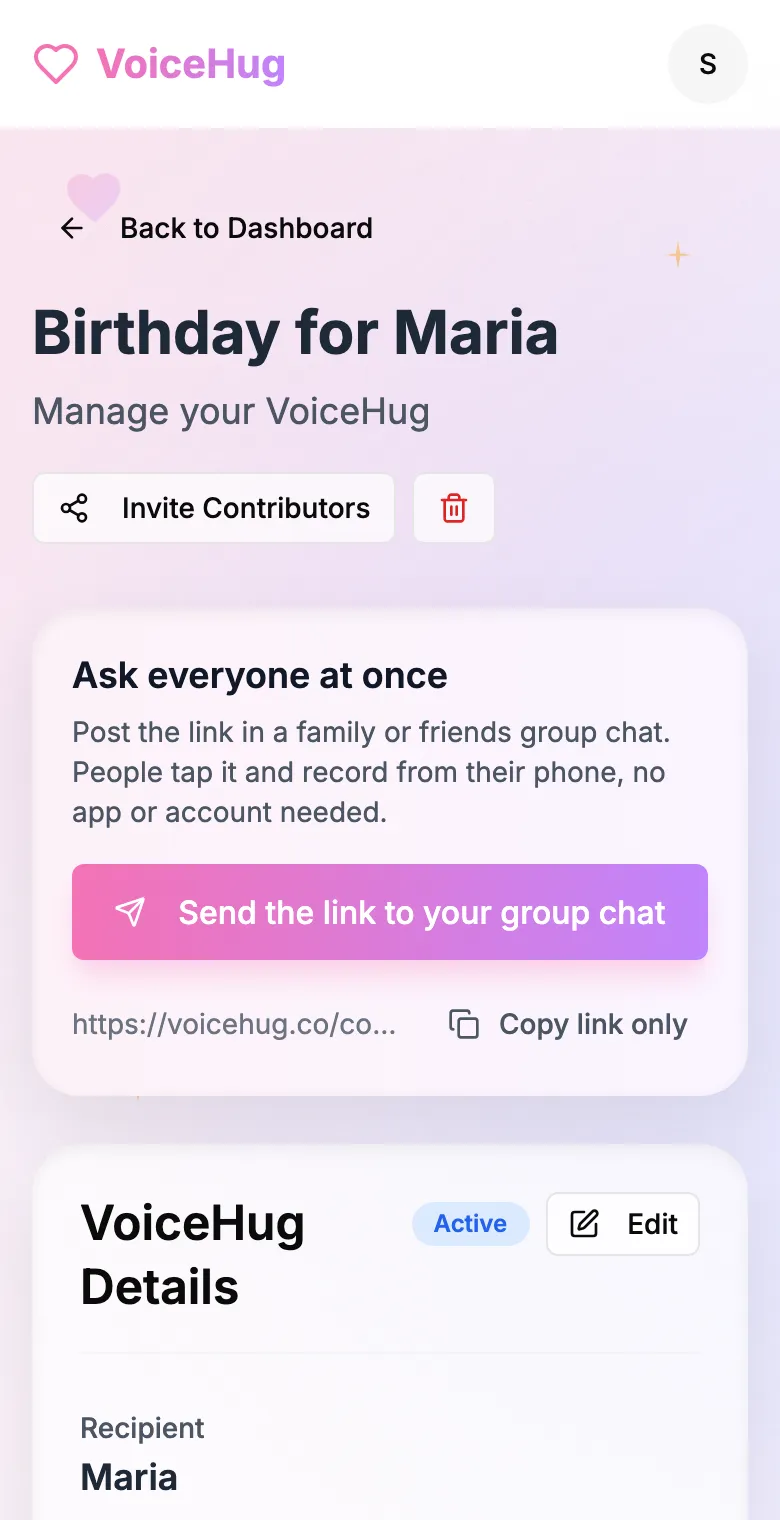
2. Send one link to the group
Post it in the family or friends group chat, or send the WhatsApp invite. You see who has recorded and can remind anyone invited by email.
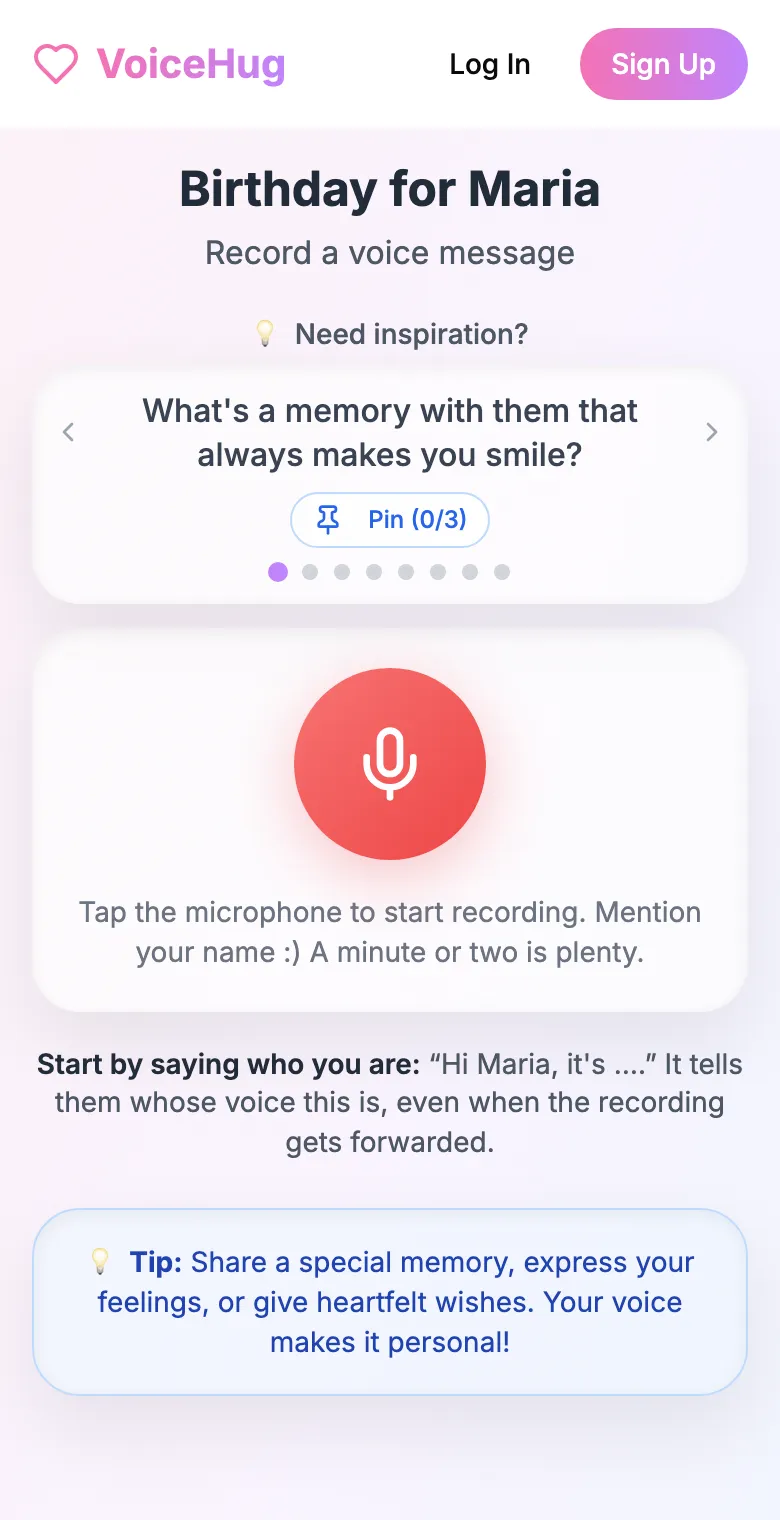
3. Each person records on their phone
They open the link and tap the microphone, with prompts if they need ideas. No app, no account. They can also send a WhatsApp voice note.
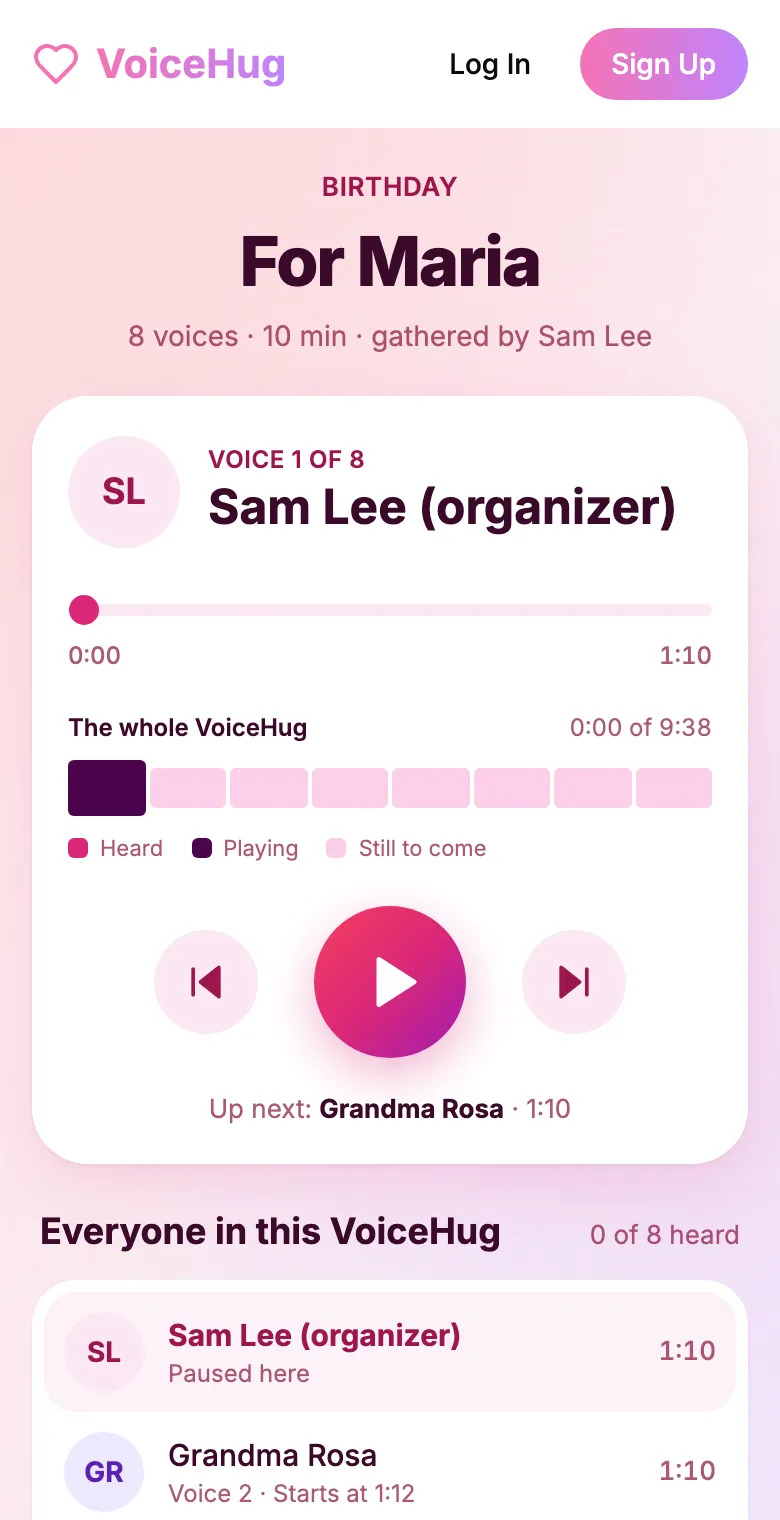
4. They get one recording
VoiceHug levels every voice, puts a short pause between them and makes one MP3 with a chapter for each person, plus a gift page to send.
Free for you and up to 5 others. $9.99 once for a larger group.
Questions
- What format are WhatsApp voice notes?
- Opus audio, saved as .opus files (an Ogg container). Android names them PTT-<date>-WA<number>.opus.
- Can I download all voice notes from a WhatsApp group?
- Yes: export the chat with media from the phone app. In a very long chat only the most recent media is included.
- Can people send their message to VoiceHug on WhatsApp?
- Yes. The invite includes a WhatsApp link with the VoiceHug's code. They send the code, then a voice note, and it becomes their recording.
- How much does VoiceHug cost?
- Free for the organizer plus up to 5 contributors (6 people). For larger groups it is a one-time $9.99 with no limit on contributors. Contributors never pay.