How to Merge WhatsApp Voice Notes Into One Audio File (Without Editing)

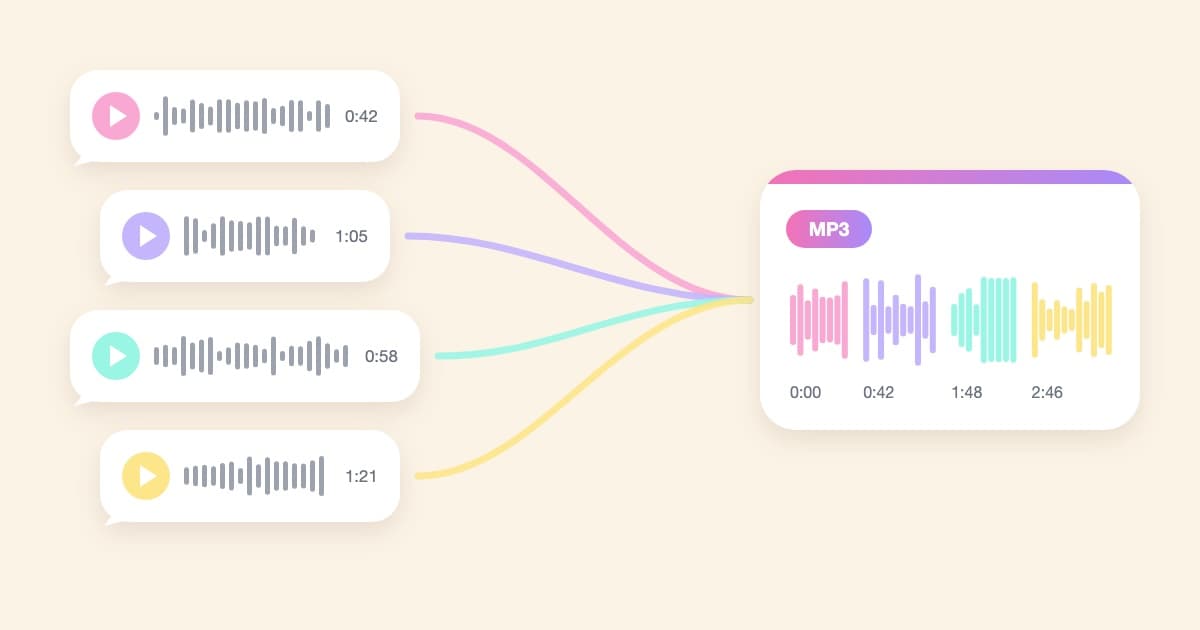
To merge WhatsApp voice notes into one audio file without exporting the chat or opening an audio editor, forward them to VoiceHug's WhatsApp number and reply FINISH. VoiceHug sends back one MP3 in the same chat: every voice note in order, the volume evened out, a short pause between each one, and a list of who speaks when. Merging forwarded voice notes is free, and the person you give it to doesn't need WhatsApp.
This post is for people who search "merge WhatsApp voice notes", "combine voice messages into one file" or "save all WhatsApp voice notes" because they want one recording to keep or to give someone: birthday messages from a family group, voice notes from friends abroad, a send-off from a team chat. Some people call the result voice messages stitched together, others an audio montage. If you'd rather do it yourself with Audacity or ffmpeg, our guide to saving and merging WhatsApp voice notes covers the manual route step by step.
Why merging WhatsApp voice notes takes so long by hand
WhatsApp has no button to merge voice notes and no button to save them all at once. The manual route is to export the chat with media, unzip it on a computer, find the .opus files among everything else, put them in order, even out the loud and quiet voices one file at a time, and export an MP3. Mac tools like GarageBand and QuickTime don't open .opus files, so there's often a conversion step too. It works, but for a dozen voice notes it's easily an hour at a computer.
Forwarding skips all of that. The voice notes never leave WhatsApp until they come back as one file.
How to merge WhatsApp voice notes with VoiceHug
- Tap Or start one on WhatsApp on this page. WhatsApp opens a chat with VoiceHug with a message already typed. Press send. You don't need to sign up first: VoiceHug sets up your account from your WhatsApp number.
- Answer two questions: who the recording is for, and the occasion. You can tap Choose occasion or type a few words.
- Forward the voice notes. In the chat where they are, press and hold a voice note, tap any others you want to include, tap Forward and choose the VoiceHug chat. You can do this while you're answering the questions or afterwards, and in as many batches as you like. Each forwarded voice note goes into your VoiceHug as its own voice, and VoiceHug replies once per batch to say how many it added.
- Add your own message if you want one. Record a voice note directly in the VoiceHug chat, and it goes in as yours rather than as a forwarded voice.
- Reply FINISH, or tap Make the gift. VoiceHug puts the voice notes together, which takes a minute or two (a few for a long one), and sends the MP3 back in the same chat. When the mix has more than one voice, a second message lists every voice with the time it starts.
- Forward the MP3 and the list to the person or to a group chat. The reply also includes a link to a gift page where they can listen in any browser and skip to any voice.
Forward everything before you reply FINISH. Once the mix is made, the VoiceHug stops taking new voice notes.
What you get back
- One MP3 file. It plays on iPhone, Android and any computer, and you can save it like any other file. A mix over 16 MB (about 20 minutes) arrives as a document instead of an audio message, and it still plays.
- Even volume. Each voice note is levelled on its own before they're joined, so the cousin who whispered into the phone and the uncle who shouted both come out at about the same volume.
- A short pause between voices. There's half a second of silence between each voice note, so one message doesn't run into the next.
- Chapters and a list of voices. Each voice note is a chapter in the MP3, and the list shows when each one starts, so people can find their part.
- A gift page. The link opens in any browser, with a player that skips from one voice to the next. Nobody needs an app or an account to listen.
Forwarded voice notes don't carry the sender's name, so they appear as Voice 1, Voice 2 and so on. VoiceHug asks for your email address in the chat; once you've added it, you can open your VoiceHug's page on the website, give each voice a name and change the order before you make the mix. Names are set when the mix is made, so name them first.
Here's an example of the list for a mix of five voice notes, two of them named (the names and times are made up):
- 0:00 Voice 1
- 1:42 Aunt Rosa
- 3:10 Voice 3
- 4:55 Daniel
- 6:21 Voice 5
When some people haven't sent a voice note yet
Forwarding works for voice notes you already have. For the people who still need to record, reply INVITE in the VoiceHug chat. VoiceHug sends you a message to forward to them, with two links: one opens WhatsApp with the VoiceHug's code typed in, so they send a voice note straight to VoiceHug, and one opens a recording page in the browser for anyone not on WhatsApp. Their messages go into the same recording as the voice notes you forwarded. Reply STATUS anytime to see who has recorded.
If you're collecting from a group from the start, our post on collecting group voice messages on WhatsApp covers that route in more detail.
Merging by hand vs. forwarding to VoiceHug
| Export and edit yourself | Forward to VoiceHug | |
|---|---|---|
| What you need | A computer, an audio editor and the chat export | WhatsApp on your phone |
| Getting the voice notes out | Export the chat with media, unzip, find the .opus files | Forward them |
| Volume evened out | Only if you level each file by hand | Yes, each voice note on its own |
| Pauses between voices | Added by hand | Half a second, added for you |
| List of who speaks when | Written by hand | Sent with the MP3 |
| Recipient needs WhatsApp | No | No |
| Cost | Free, plus your time | Free for forwarded voice notes |
Things to know before you start
- Voice notes only. VoiceHug takes WhatsApp voice notes, the ones recorded with the microphone button. Audio files shared into a chat, such as MP3s or iPhone voice memos, aren't accepted on WhatsApp. For those, see our guides to combining voice messages into one file and combining iPhone voice memos.
- Up to 5 minutes per voice note. A longer one is turned away, and VoiceHug asks for a shorter one.
- Order. Voice notes go in the order they arrive. You can change the order on your VoiceHug's page once you've added your email.
- Other people's messages. Forwarded voice notes are other people's voices. Forward the ones they sent for this, and leave out anything they'd rather keep in the chat.
Frequently asked questions
Does this work on iPhone and Android?
Yes. WhatsApp voice notes are the same kind of file on both, and forwarding works the same way: press and hold, then Forward. The MP3 you get back plays on both.
Is it free?
Yes. Forwarded voice notes don't count toward any limit, so merging them costs nothing however many you forward. If you also invite people to record their own message, that's free for up to 5 of them, and $9.99 once for more, with no subscription.
Does the person I'm giving it to need WhatsApp?
No. You can forward the MP3 on WhatsApp, but it's a normal MP3 file you can send any other way, and the gift page link opens in any browser.
How long can the recording be?
Each voice note can be up to 5 minutes. The finished MP3 can hold about two hours of voice notes in total.
How do I save all my WhatsApp voice notes in one file?
Forward them to VoiceHug and reply FINISH. You get one MP3 with all of them, which you can save to your phone, Files, Google Drive or a computer. To save each voice note as its own file instead, the manual guide shows how to export them on iPhone and Android.
Can I merge voice notes from different chats?
Yes. Forward them from as many chats and groups as you like into the VoiceHug chat. They all go into the same recording.
Do I need an account?
You don't sign up beforehand. Your WhatsApp number is enough to start, merge and receive the MP3. VoiceHug asks for your email address in the chat so you can open your VoiceHug on the website, where you can name the voices and change their order.
Is VoiceHug part of WhatsApp?
No. VoiceHug is an independent service, not made by or affiliated with WhatsApp or Meta.
Merge your voice notes now
If the voice notes are already sitting in a chat, it takes a few minutes: start a VoiceHug on WhatsApp with the button on this page, forward them, and reply FINISH. You'll get one MP3 back in the same chat. For the manual route, see our guide to merging WhatsApp voice notes by hand.